
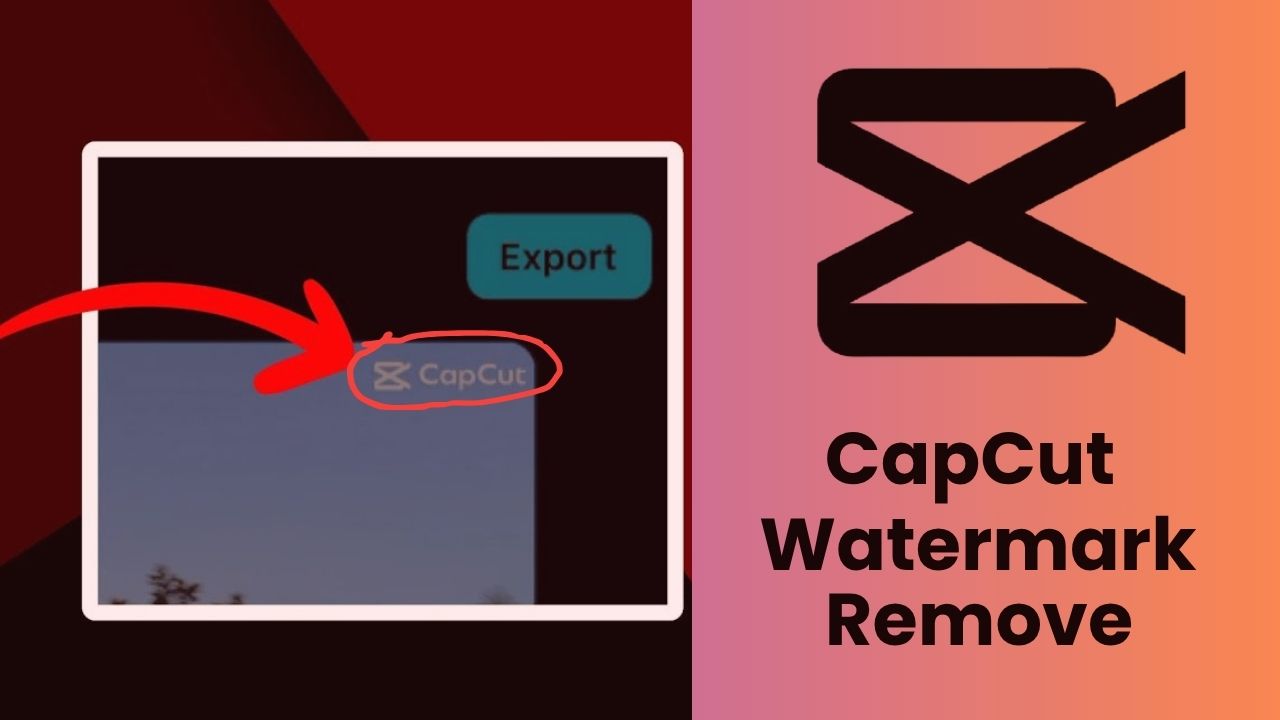
Nowadays, every content creator wants their videos to look clean, professional, and attractive. But when a CapCut watermark appears on a video after it’s exported, many users look for an easy way to remove it. That’s why this CapCut Watermark Removal Guide is designed for all users who want to remove or avoid the watermark without any hassle. Whether you’re creating videos for YouTube, uploading short clips to TikTok, or creating Instagram Reels, a watermark-free video always looks more professional.
In this article, we’ll explain in simple and straightforward terms the best ways to remove the CapCut watermark and which methods preserve the video’s original quality. You’ll also learn why the watermark reappears, how to avoid it, and what to consider to export clean videos in the future. Whether you’re a beginner or a regular CapCut user, this guide will provide you with all the necessary information you’ll need.
What Is a CapCut Watermark?
A CapCut watermark is a small logo or ending clip that CapCut may add when you export a video. Its purpose is to show that the video was created using the CapCut app. While this is not a problem for many users, content creators often prefer clean videos without any branding for YouTube, TikTok, Instagram, or client projects. If you’re new to the app and want to understand how CapCut works before removing watermarks, you can read our CapCut Tutorial for Beginners. Learning the basics first will make it much easier to edit and export professional-quality videos.
Why Does CapCut Add Watermarks?
CapCut adds watermarks mainly for branding and marketing purposes. Every time someone shares a video with the CapCut logo, it promotes the application to new users. This strategy is common among free video editing apps because it helps them grow their user base without spending heavily on advertising.
There are generally two kinds of CapCut branding:
- The removable ending clip.
- Template or project-related watermarks that may appear in certain exports.
Recent versions of CapCut have reduced unnecessary watermarks in normal editing projects, allowing users to export clean videos after deleting the ending clip. Premium features may also offer additional export flexibility.
Can You Remove a CapCut Watermark?
Yes. In most situations, you can remove the CapCut watermark without using third-party software. The easiest method is simply deleting the automatically added ending clip before exporting your project. This preserves the original video quality and avoids unnecessary editing.
Keep in mind that removing branding from content you don’t own or bypassing licensing restrictions may violate copyright or platform policies. Always ensure you have permission to edit and distribute the content.
The Best Methods to Remove CapCut Watermarks in This CapCut Watermark Removal Guide

Method 1: Delete the Ending Clip
This is the easiest and safest method.
- Open your project.
- Scroll to the end of the timeline.
- Tap or click the CapCut ending.
- Select Delete.
- Export your video.
Since you’re not reprocessing or cropping the footage, your original quality remains intact.
Method 2: Export Without the Ending
Before exporting, carefully review the timeline to ensure the branded ending clip has been removed. Many beginners accidentally leave it in place because they don’t scroll to the very end of the project.
Always preview the final export before uploading it to social media.
Method 3: Use CapCut Premium
Some premium features simplify exports and unlock advanced editing tools. If you’re a frequent content creator, the paid version may be worthwhile because it provides additional creative assets while maintaining a smoother workflow.
Method 4: Crop the Watermark
If a watermark appears in the corner of a downloaded video that you have permission to edit, cropping can remove it. However, this slightly changes the video’s framing and may reduce visual quality.
Avoid excessive cropping, especially for landscape videos intended for YouTube.
Best Online CapCut Watermark Removal Tools in 2026
If you’ve already exported a video containing a watermark, several online editors and AI-powered tools can help remove it. These typically work by cropping, blurring, or using AI inpainting techniques.
| Tool | Best For | Free Version | Quality |
|---|---|---|---|
| Media.io | AI watermark removal | Yes | Good |
| Vmake AI | AI object removal | Yes | Very Good |
| Canva | Cropping videos | Yes | Excellent |
| VEED | Online editing | Yes | Good |
The best option depends on where the watermark appears. If it’s located at the edge, cropping is usually sufficient. If it’s embedded inside the frame, AI removal tools generally produce better results.
Common Problems and Fixes
Watermark Still Appears
If the watermark remains after exporting:
- Update CapCut to the latest version.
- Check if you used a template.
- Delete every ending clip.
- Export again.
If you’re experiencing missing templates or loading problems, check out our CapCut Templates Not Showing Fix guide for simple solutions. Once the template issue is fixed, export your video again and check whether the watermark has been removed.
Export Quality Drops
Quality loss usually happens because users:
- Export at a lower resolution.
- Reduce bitrate.
- Recompress videos through multiple editing apps.
- Use low-quality online converters.
Always export at the highest available resolution and bitrate for the best results.
CapCut Watermark Removal Guide Tips to Avoid Watermarks in Future
Instead of removing watermarks later, it’s better to prevent them from appearing in the first place.
Good practices include:
- Always delete the ending clip before exporting.
- Keep CapCut updated.
- Use original editing projects rather than downloaded videos.
- Export only once whenever possible.
- Review your final timeline before rendering.
These habits save time and preserve video quality.
Conclusion
Removing the CapCut watermark isn’t as difficult as people often think. I’ve explained everything in the CapCut Watermark Removal Guide in an easy-to-use setup. If you follow the correct methods, such as deleting the ending clip or exporting the project properly, you can achieve professional videos without losing quality. By following all the tips and solutions shared in this CapCut Watermark Removal Guide, you can avoid watermarks in the future and make your social media content more professional.
FAQs
Can I remove the CapCut watermark for free?
Yes. In most projects, you can simply delete the ending clip before exporting your video without paying anything.
Will removing the CapCut watermark reduce video quality?
No. If you remove the ending clip before exporting, your original video quality remains unchanged.
Why does my CapCut video still have a watermark?
Some templates include creator branding or additional watermarks that are different from the standard ending clip.
Can I use online AI tools to remove CapCut watermarks?
Yes, but use trusted tools and remember that AI removal may slightly affect the final video quality depending on the watermark’s position.
Is removing a CapCut watermark legal?
Removing the watermark from your own projects is generally acceptable, but you should always respect copyright laws and platform terms when editing someone else’s content.
What is the easiest way to avoid CapCut watermarks?
The easiest solution is to delete the CapCut ending clip before exporting and double-check your timeline before saving the final video.
Is this CapCut Watermark Removal Guide suitable for beginners?
Absolutely. This CapCut Watermark Removal Guide explains beginner-friendly methods that require no advanced editing skills.
Does the CapCut Watermark Removal Guide work on Android and iPhone?
Yes. The methods in this CapCut Watermark Removal Guide work on Android, iPhone, and, in most cases, on the desktop version of CapCut.