
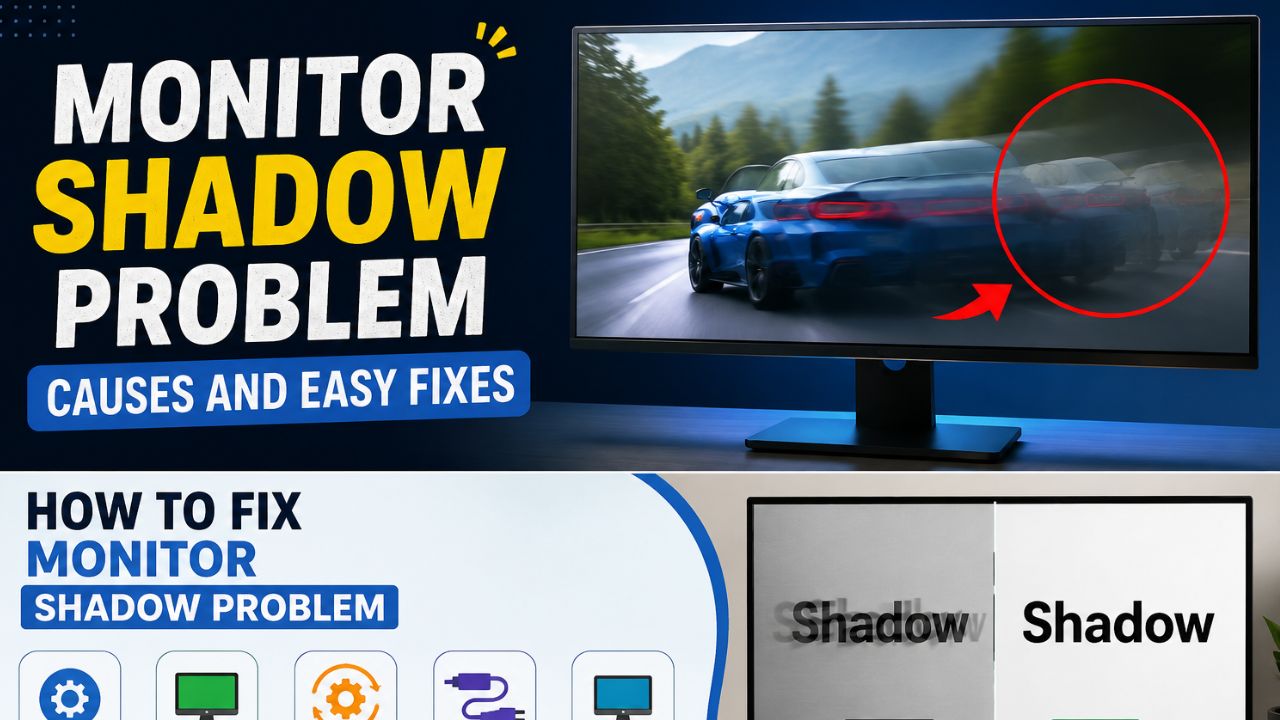
Today we will tell you the solution to this problem which is called monitor shadow problem and which many friends are facing these days. Nowadays many users suddenly notice dark spots, uneven brightness, or slight shadows on their screens. This issue is commonly called monitor shadow problem. This problem may seem small at first, but it can become more noticeable with time. We must remember that not every shadow issue means that the monitor is damaged. Sometimes such issues can also arise due to simple settings or cable problems.
In this complete guide, I’ll explain in simple terms what the monitor shadow problem is, its common causes, and how to fix it step-by-step. You’ll also learn what to consider to avoid this problem in the future, and when replacing your monitor might be the best option.
What Is the Monitor Shadow Problem?
The monitor shadow problem is a common display issue due to which the monitor screen does not appear as clear as normal. In this problem, a faint shadow or trail can be seen behind moving objects. Sometimes ghosting, dark shadows, blurry text, or image trails can also be seen on the screen, which disappear after a few seconds. This issue can occur while web browsing, watching videos, gaming, or even just moving the mouse cursor. In this article, I will tell you the complete solution to this problem step by step, as I have a lot of experience with this.
Common Signs of a Monitor Shadow Problem
Monitor shadow problems are easy to spot when you use your computer daily. The screen doesn’t appear as sharp and clear as it should, especially when moving quickly. You may notice shadows behind moving objects, blurry text when scrolling, or image trails, making the viewing experience less comfortable. This problem can occur with gaming monitors, office monitors, and external laptop displays. This issue often becomes more apparent when scrolling, gaming, or watching fast-action videos. By recognizing these common signs, you can quickly determine if your monitor has a display-related problem.
Shadow Behind Moving Objects
One of the most common signs is a faint shadow behind moving objects. You may notice it when moving the mouse cursor, dragging windows, or playing games with fast motion. Instead of a clean image, the object leaves a short trail behind it.
Blurry Text and Icons
Text and icons may look blurry while scrolling through websites or documents. Although they become clear when the screen stops moving, the blur can make reading difficult and reduce overall display quality.
Dark Lines or Image Trails
You may also notice dark lines or image trails following moving objects. These trails usually disappear after a moment, but they can make videos and games look less smooth and more distracting.
Screen Looks Fine in Screenshots but Not in Real Life
Sometimes, screenshots look completely normal, but the monitor still shows shadows or ghosting. This happens because the problem is related to the monitor or its display settings, not the image saved by your computer.
What Causes the Monitor Shadow Problem?
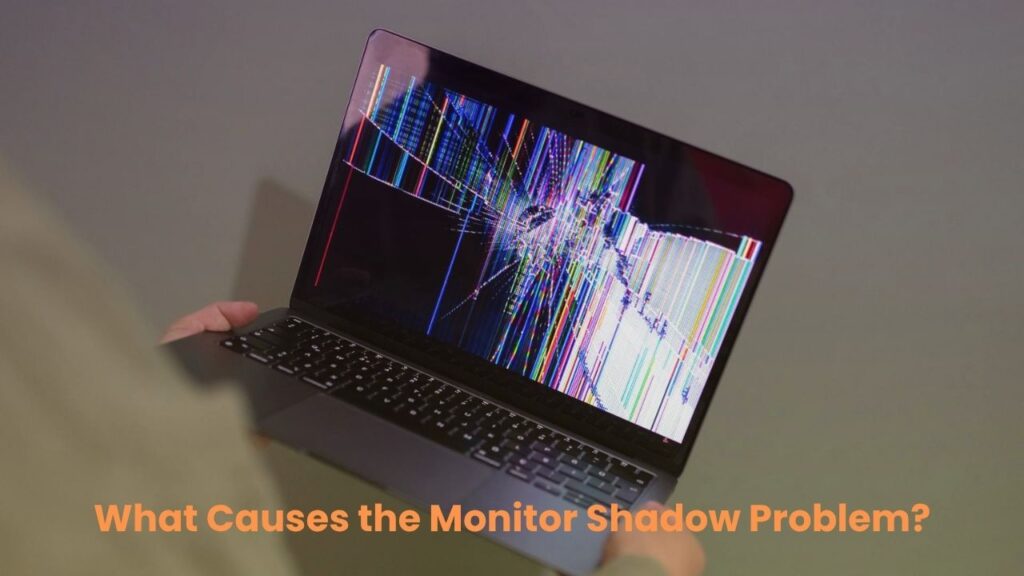
A Monitor Shadow Problem can happen for many reasons. In most cases, the problem is not caused by a broken monitor. Instead, it may be related to the monitor settings, display cable, graphics driver, or refresh rate. Sometimes, a simple setting change can remove the shadow effect in just a few minutes. However, if the monitor has physical damage, the problem may be more difficult to fix. Before buying a new monitor, it is important to check all possible causes. Below are the most common reasons behind a Monitor Shadow Problem and what they mean.
Wrong Monitor Settings
Incorrect monitor settings are one of the most common causes of a Monitor Shadow Problem. Features like Overdrive, Response Time, brightness, or contrast may be set too high or too low. Changing these settings to the recommended values can often improve display quality and remove shadow effects.
Low-Quality or Damaged HDMI/DisplayPort Cable
A damaged or poor-quality HDMI or DisplayPort cable can cause display problems. If the cable is loose, bent, or broken, the monitor may not receive a stable signal. Try using a different cable to see if the shadow problem disappears.
Incorrect Refresh Rate
If your computer is using the wrong refresh rate, the screen may look blurry or show image trails. Always set the refresh rate to the highest value supported by your monitor for a smoother display.
Graphics Driver Issues
An old or damaged graphics driver can create many display problems, including monitor shadows and ghosting. Updating your graphics driver to the latest version may solve the issue and improve screen performance.
Hardware Damage
If none of the above solutions work, your monitor may have a hardware problem. A damaged display panel or internal component can cause permanent shadows or ghosting. In this case, the monitor may need professional repair or replacement.
How to Fix the Monitor Shadow Problem
In many cases, you can fix a Monitor Shadow Problem without buying a new monitor. Most shadow issues are caused by incorrect settings, outdated drivers, or faulty cables. Start with the simple solutions first, as they only take a few minutes and often solve the problem. If the issue continues, move to the next method until you find the real cause. Follow the steps below one by one to improve your monitor’s display and remove shadows, ghosting, or image trails.
Restart Your Computer
Restarting your computer can fix temporary display errors. After the restart, check whether the shadow problem is still visible.
Check All Display Cables
Make sure the HDMI or DisplayPort cable is connected properly. If possible, replace the cable with a new, high-quality one to rule out cable issues.
Change the Refresh Rate
Open your display settings and select the highest refresh rate supported by your monitor. A higher refresh rate can make motion smoother and reduce shadow effects.
Update the Graphics Driver
Download and install the latest graphics driver from the official NVIDIA, AMD, or Intel website. Updated drivers often fix display bugs and improve performance.
Reset Monitor Settings
Open your monitor’s on-screen menu and choose the Factory Reset or Reset Settings option. This will return all display settings to their default values.
Turn Off Overdrive or Response Time Boost
Some monitors have an Overdrive or Response Time Boost feature. If it is set too high, it may create ghosting or shadow effects. Turn it off or lower the setting and check if the display becomes clearer.
Test Another Monitor
Connect your computer to another monitor. If the second monitor works normally, the original monitor is likely causing the problem.
Test Another Computer
Connect your monitor to a different computer. If the shadow problem still appears, the monitor may have a hardware issue. If the problem disappears, your original computer or graphics settings are likely the cause.
If the shadow effect is still visible after trying the fixes above, don’t replace your monitor right away. Sometimes, a similar display issue can have a different cause and needs a different solution. If you want to learn more about this topic, you can also read my detailed guide on the Computer Screen Shadow Problem. It explains the common causes, symptoms, and additional fixes that may help you solve the issue.
How to Fix Monitor Shadow Problem on Windows 11
If you are using Windows 11, you can fix a Monitor Shadow Problem by checking a few display settings. Wrong settings can cause ghosting, blurry text, or image trails. Windows refresh rate lets you change important options like refresh rate, resolution, HDR, and display scaling. These settings only take a few minutes to check and can greatly improve your monitor’s picture quality. Follow the suggestions below to make sure your display is set up correctly.
Refresh Rate
Go to Settings > System > Display > Advanced Display and select the highest refresh rate your monitor supports. A higher refresh rate makes motion smoother and helps reduce shadow effects.
Resolution
Always use your monitor’s recommended resolution. A lower or incorrect resolution can make the screen look blurry and reduce image quality.
HDR
If HDR is turned on and your monitor does not fully support it, the display may not look right. Try turning HDR off and check if the shadow problem improves.
Display Scaling
Use the recommended display scaling, such as 100% or 125%, depending on your monitor. Incorrect scaling can make text and icons appear blurry.
How to Fix Monitor Shadow Problem While Gaming
A Monitor Shadow Problem is often more noticeable while gaming because objects move quickly on the screen. The right gaming settings can improve motion and reduce ghosting or image trails. You should also make sure your graphics card and monitor are working together correctly. Try the tips below to get a smoother gaming experience.
High FPS
A higher FPS (Frames Per Second) makes games look smoother. If your FPS is very low, motion may appear less clear and shadows can become easier to notice.
G-Sync
If you have an NVIDIA graphics card and a compatible monitor, enable G-Sync. It helps reduce screen tearing and provides smoother gameplay.
FreeSync
If you use an AMD graphics card, turn on FreeSync if your monitor supports it. This can improve motion and reduce display problems during gaming.
V-Sync
Enable V-Sync if you notice screen tearing. While it may slightly affect performance in some games, it can make the display look smoother.
Response Time
Check your monitor’s response time setting in the monitor menu. If it is set too high, it may cause ghosting or shadow effects. Try using the Normal setting instead of the highest option.
How to Prevent Monitor Shadow Problem in the Future
You can lower the chance of a Monitor Shadow Problem by taking good care of your monitor and using the correct settings. Simple habits can help keep your display clear and working properly for a long time. The tips below can also improve your overall viewing experience.
Buy Quality Cables
Use a good-quality HDMI or DisplayPort cable. A reliable cable provides a stable signal and helps prevent display issues.
Update Drivers
Keep your graphics driver up to date. Driver updates often fix display bugs and improve monitor performance.
Avoid Extreme Brightness
Do not keep your monitor at very high brightness all the time. Use a comfortable brightness level to reduce stress on the display.
Clean Your Monitor Regularly
Clean the screen with a soft microfiber cloth. Dust and fingerprints can make the display look unclear.
Use the Recommended Resolution
Always select the monitor’s recommended resolution in Windows. This gives the best picture quality and helps avoid blurry images or display problems.
When Should You Replace Your Monitor?
You do not need to replace your monitor as soon as you notice a Monitor Shadow Problem. In many cases, updating the graphics driver, changing the refresh rate, or using a new display cable can solve the issue. However, if you have tried all the fixes and the problem still remains, it may be time to buy a new monitor.
Replace your monitor if you notice dead pixels that never disappear, permanent shadows that stay on the screen all the time, or screen burn that affects normal use. You should also consider a replacement if the monitor has internal panel damage, such as cracks or display faults, or if the repair cost is too high compared to buying a new one. A modern monitor will provide better picture quality, smoother performance, and a more enjoyable viewing experience.
Conclusion
In the end, I would like to say that if you are also facing the issue of monitor shadow problem then there is no need to worry at all. In most cases, this issue is caused by incorrect monitor settings, outdated graphics drivers, a low refresh rate, or a faulty HDMI/DisplayPort cable and can be easily fixed. Follow all the steps in this guide one by one and check your monitor after each change. To avoid this problem in the future, use quality cables, keep your drivers updated regularly, and always use the recommended monitor settings.
If the Monitor Shadow problem persists after trying all the solutions, or if you experience persistent shadows or flickering on your screen, consult a professional technician. If the same problem occurs again, then the best option would be to replace the monitor at the end.
Pro Tip: If you found this guide helpful, you can also explore our Tech Guides category for more computer, Windows, and monitor troubleshooting tutorials.
FAQs
Can a Monitor Shadow Problem go away on its own?
In most cases, a Monitor Shadow Problem does not disappear on its own. You usually need to adjust the monitor settings, update the graphics driver, or replace a faulty display cable to fix it.
Can a monitor shadow problem be fixed?
Yes. Many cases can be improved by adjusting settings, updating drivers, or replacing cables.
Why does my monitor show shadows only while scrolling?
This often happens because of a low refresh rate, incorrect response time settings, or monitor ghosting. Changing these settings can improve screen clarity while scrolling.
Can a bad HDMI cable cause a Monitor Shadow Problem?
Yes. A damaged or low-quality HDMI cable can affect the display signal and cause shadow effects, flickering, or blurry images. Replacing the cable is a simple way to test if it is the cause.
Does changing the refresh rate improve monitor shadows?
Yes. Setting your monitor to its recommended refresh rate can make motion smoother and reduce ghosting or shadow effects, especially during gaming and video playback.
Is a Monitor Shadow Problem a hardware issue?
Not always. Most shadow problems are caused by software settings, graphics drivers, or display cables. Hardware damage is usually the last possibility after all other fixes have been tried.
Can Windows 11 settings cause a Monitor Shadow Problem?
Yes. Incorrect display settings, such as the wrong resolution, refresh rate, HDR, or display scaling, can sometimes make the screen look blurry or create shadow effects.
How do I know if my monitor is damaged?
If you still see permanent shadows, dead pixels, screen burn, or display issues after trying every fix, your monitor may have a hardware problem that needs repair or replacement.