
If you are using ChatGPT Plus or any paid plan and want to stop it but don’t know how, Many users search for how to cancel ChatGPT subscription on website because they have difficulty finding billing settings or a cancel button. Friends, canceling a subscription is a simple process, and you can stop your recurring payment in just a few minutes. In this guide, I will walk you through the step-by-step process, common issues, and refund policy. By the end, you will clearly understand how to cancel chatgpt subscription on website without any confusion.
What Is a ChatGPT Subscription?
ChatGPT offers both free and paid plans. The free version provides access to basic features, while paid plans such as ChatGPT Plus offer additional benefits, including access to more advanced AI models, faster response times, priority availability during busy periods, and enhanced productivity tools.
A subscription works on a recurring billing model. Once you subscribe, your payment method is charged automatically at the end of each billing cycle until you cancel the plan. Understanding how this system works is important because many users assume deleting the app or stopping usage automatically ends the subscription. In reality, the subscription remains active until it is formally canceled.
For this reason, users who no longer need premium features should cancel their plan through the proper billing settings rather than simply stopping usage.
Things to Know Before Cancelling ChatGPT
Check Where You Purchased Your Subscription
Before starting the cancellation process, determine where you originally purchased your subscription.
If you subscribed through the ChatGPT website, you can cancel directly from your account settings.
If you subscribed through Apple App Store, you must cancel through Apple’s subscription settings.
If you subscribed through Google Play Store, cancellation must be completed through Google Play.
Many users cannot find the cancel option because they are looking in the wrong place.
Export Important Data
Although canceling your subscription does not delete your account, it is a good idea to save important conversations, prompts, and files before making changes to your account.
Professionals, content creators, marketers, and developers often store valuable information inside ChatGPT. Creating a backup ensures nothing important is overlooked.
Save Custom GPTs and Prompts
If you have created custom GPTs, workflows, or prompt libraries, consider exporting or documenting them before downgrading. While your account remains active, certain premium features may become restricted after your paid plan expires.
How to Cancel ChatGPT Subscription on Website
Step 1: Log In to Your ChatGPT Account
Visit the official ChatGPT website and sign in using the email address associated with your subscription.
Make sure you use the correct account. Many users have multiple email addresses and accidentally log into an account that does not contain the active subscription.
Step 2: Open Settings
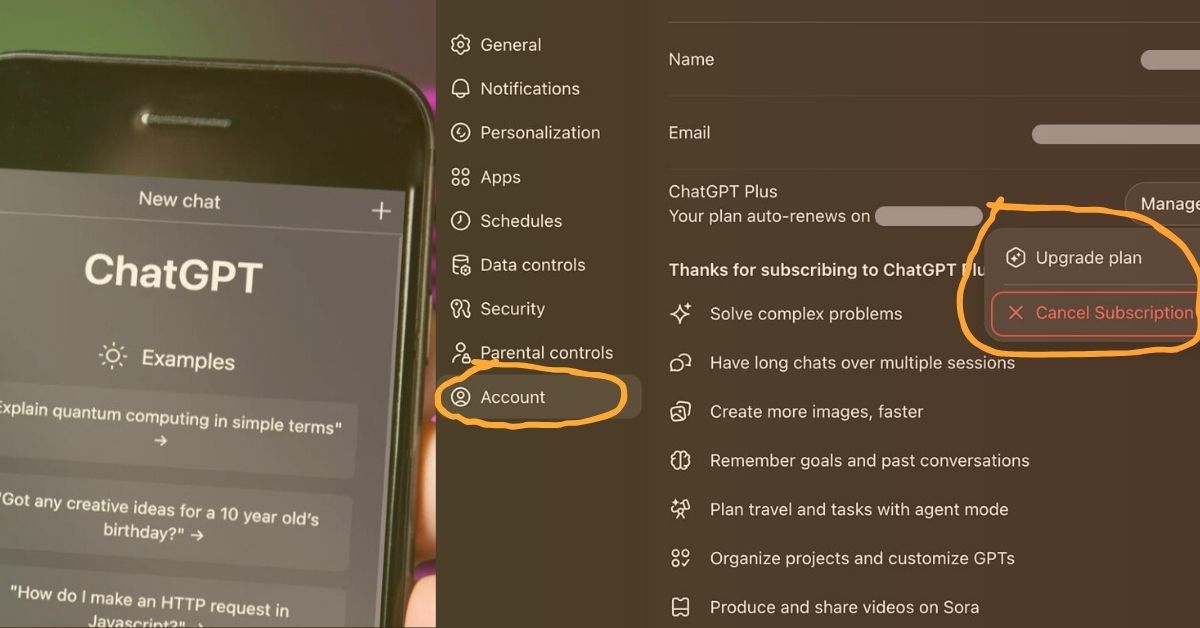
After logging in, locate your profile icon in the bottom-left corner of the screen.
Click the profile icon and select Settings from the menu.
The settings section contains all account management options, including billing and subscription controls.
Step 3: Go to Billing & Subscription
Inside Settings, navigate to the Billing or Subscription section.
Here you will see details such as:
- Current plan
- Billing date
- Payment information
- Subscription status
This section is where all subscription-related actions are managed.
Step 4: Click Manage Plan
Select the Manage Plan option.
This will open the subscription management page where you can review your current plan and billing details.
Take a moment to verify your next renewal date before proceeding.
Step 5: Select Cancel Subscription
Click the Cancel Subscription button.
You may be asked to confirm your decision or provide feedback regarding your cancellation.
This is a normal step used by most subscription services.
Step 6: Confirm the Cancellation
Complete the final confirmation process.
After confirmation, your subscription will remain active until the end of the current billing period.
You should receive an on-screen confirmation message and, in most cases, a confirmation email.
How to Verify That Your Subscription Was Cancelled
Many users close the browser immediately after cancellation without verifying the result.
To confirm successful cancellation:
- Return to Billing Settings.
- Review your subscription status.
- Check for an expiration date.
- Look for a cancellation confirmation email.
A successful cancellation typically displays a message indicating that your subscription will end on a specific date.
What Happens After You Cancel ChatGPT?
Access Continues Until the End of Your Billing Cycle
One of the most common misconceptions is that premium access ends immediately after cancellation.
In reality, your paid benefits usually remain active until the billing period you already paid for expires.
This means you can continue using premium features until the renewal date.
Your Chat History Remains Available
Canceling a subscription does not automatically delete your chats.
Your conversation history remains associated with your account and can still be accessed after your subscription ends.
This is reassuring for users who rely on previous conversations for reference.
Custom GPT Access May Change
Users who rely on premium-only tools should review feature availability after cancellation.
Some advanced capabilities may become limited when your account returns to the free plan.
Your Account Is Not Deleted
Subscription cancellation and account deletion are two completely different actions.
Canceling stops future billing.
Deleting an account permanently removes account access and data.
Most users only need subscription cancellation.
Benefits of Properly Cancelling Your Subscription
Canceling your subscription correctly provides several benefits:
- Prevents unwanted renewal charges
- Gives you control over recurring expenses
- Allows you to return later if needed
- Keeps your account active
- Preserves chat history
- Helps manage monthly software costs
Proper account management ensures you only pay for services you actively use.
Common Mistakes When Cancelling ChatGPT
Looking in the Wrong Place
Many users subscribed through Apple or Google Play but try to cancel through the website.
This often results in confusion because the cancellation button is not visible.
Using the Wrong Account
If Billing settings are missing, verify that you are signed into the correct email account.
Waiting Until the Last Minute
Avoid canceling just before your renewal date.
It is generally recommended to cancel at least 24 hours before the next billing cycle.
Assuming Uninstalling Cancels the Subscription
Deleting the app does not stop billing.
You must cancel through the appropriate subscription management portal.
ChatGPT Website vs Mobile App Cancellation
How to Cancel ChatGPT on iPhone
If you subscribed through Apple:
- Open Settings on iPhone.
- Tap your Apple ID.
- Select Subscriptions.
- Find ChatGPT.
- Tap Cancel Subscription.
How to Cancel ChatGPT on Android
If you subscribed through Google Play:
- Open Google Play Store.
- Tap your profile.
- Select Payments & Subscriptions.
- Open Subscriptions.
- Choose ChatGPT.
- Tap Cancel Subscription.
ChatGPT Refund Policy Explained
Refunds and cancellations are separate processes.
Canceling prevents future charges, while refunds relate to payments already made.
If you believe a billing error occurred, contact support through official OpenAI channels.
Refund eligibility depends on multiple factors, including location, consumer protection regulations, and billing circumstances.
Users should review the official refund policy before submitting a request.
Expert Tips for Managing ChatGPT Subscriptions
Monitor Your Renewal Date
Always know when your subscription renews.
This helps avoid unexpected charges.
Keep Billing Emails
Store confirmation emails and receipts for future reference.
Review Usage Monthly
Evaluate whether premium features still provide value.
Regular reviews help reduce unnecessary subscription costs.
Use Calendar Reminders
Set reminders several days before renewal.
This simple habit prevents accidental charges.
Practical Example
Imagine a freelance writer who subscribed to ChatGPT Plus during a major client project.
The advanced features helped complete work faster, but after the project ended, usage dropped significantly.
Instead of continuing to pay monthly, the writer logged into ChatGPT, opened Billing Settings, clicked Cancel Subscription, and retained access until the end of the billing cycle.
If you use online tools and want to learn more about them, you can check these articles below:
Key Takeaways
- ChatGPT subscriptions renew automatically.
- Website subscriptions must be canceled through account settings.
- Apple subscriptions must be canceled through Apple.
- Google Play subscriptions must be canceled through Google Play.
- Canceling does not delete your account.
- Chat history remains available after cancellation.
- Premium access continues until the billing cycle ends.
- Refunds are not automatically granted.
- Always verify cancellation through billing status or email confirmation.
- Save important prompts and data before making account changes.
FAQs
How do I cancel ChatGPT subscription on website?
Log into ChatGPT, open Settings, go to Billing, select Manage Plan, and click Cancel Subscription.
Can I cancel ChatGPT at any time?
Yes. You can cancel your subscription whenever you choose.
Will I lose my chats after cancelling ChatGPT Plus?
No, your chat history will not be deleted. You can still access your previous conversations even after cancellation.
Why can’t I find the cancel button on ChatGPT?
This usually happens if you are logged into the wrong account or if your subscription was purchased through Apple or Google Play.
Where do I manage ChatGPT subscription settings?
You can manage your subscription by going to your ChatGPT account settings under the Billing section on the website.
Can I resubscribe to ChatGPT after cancelling?
Yes, you can resubscribe anytime if you want to regain access to ChatGPT Plus or other paid features.
Can I subscribe again later?
Yes. You can reactivate a paid plan whenever you need premium features again.
Conclusion
If you were also looking for a simple and complete way to how to cancel chatgpt subscription on website, then after reading this guide you will now understand the entire process. Simply go to Settings, open the Billing section, select Manage Subscription and confirm cancellation. Remember that even after cancellation, your paid access remains available until the end of the billing cycle. If you want to use premium features again in the future, you can reactivate the subscription. Check your billing settings today and manage your account better.
Now you clearly understand how to cancel chatgpt subscription on website without any confusion.